Qadabra

Qadabra Top2

Addicted to your mobile phone? 'BreakFree' can help you!

How many times in a day you check your phone? From the time we wake up till the time we hit the bed, we are hooked to our phones (Calls, SMS, texting, taking pictures/videos, Games, social networking).

If you think you are spending an unhealthy amount of time on your smartphone and are feeling addicted, BreakFree will help you take control.


BreakFree is a revolutionary app that will help you maintain a controlled digital lifestyle. It monitors phone and app usage and tracks how addicted you are to your phone and apps. With visually appealing characters, graphs and stats, the app guides you on how you can control phone usage.

1. Usage Monitoring
2. Non Intrusive notifications
3. Phone Management Tools
4. Usage Statistics
5. Parental Control

Smartphone addiction is a growing problem all over the world across age groups. There are many instances of people seeking treatment for Nomophobia (the medical term for smartphone addiction). It’s about time we learn to disconnect and start living a real life. Let’s start using our phones the way they were meant to be. Let’s make time for the more important things in life.

Android Version is available for FREE at this Google Play Link

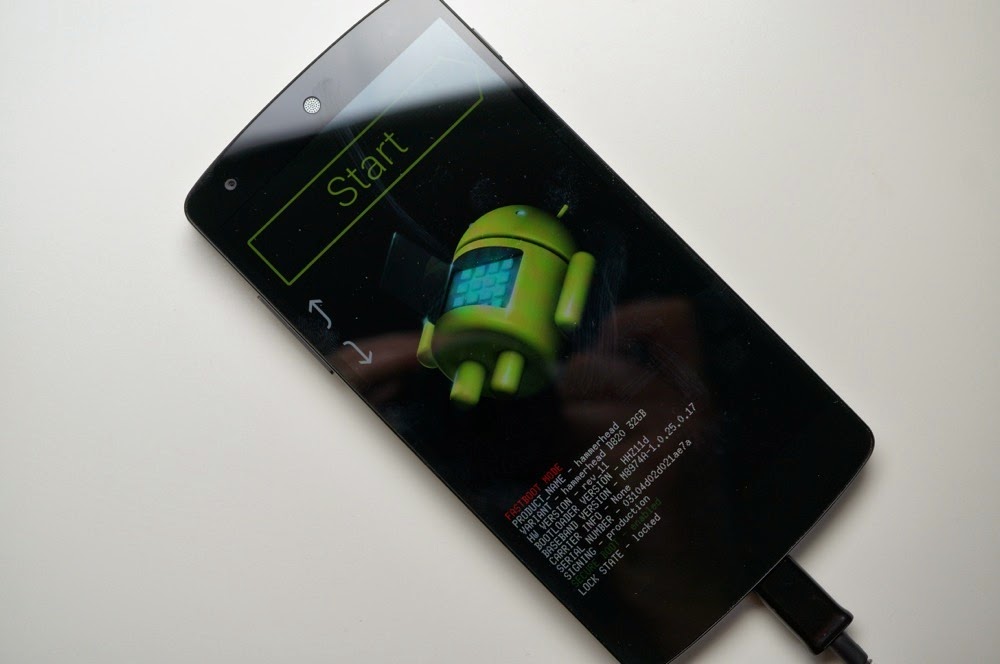
Google Nexus 5 not turning on?

If your Google Nexus 5 phone is not booting up after pressing the Power Button as usual, follow the below steps to fix!
  • Connect the charger to the phone and switch the charger ON.
  • Then, press the POWER button and the VOLUME UP and VOLUME button for about 10 seconds till the screen lits up.
  • You will see a START and an arrow pointing to the POWER button.
  • Just press the POWER button and your Nexus 5 should boot up!!

Cashkaro.com - India's #1 Cashback site!


Cashkaro.com is India's No.1 website to save on all your online shopping. The site gives you EXTRA CASHBACK when you shop at any of their 500+ partner brands. This is over and above Coupons and Discounts that might already be running on the retailer's website. Just remember to go via Cashkaro & shop. They get paid commission which they pass to you as Cashback.


Wireless Nano Router

Are you looking for a compact device which can help to create wireless connectivity and work in different modes?

Check out this device which is about the size of a Credit card!! from TP-LINK.

More information available at TPLINK website


Microsoft Office 2013 - Free Legal Download

Office 2013 - Free Legal Download


Microsoft OfficeThe latest version of the Microsoft Office (Office 2013) is now available for Free download at the below link at Microsoft's website.


Click here to Download


PowerPointOneNote
ExcelWord
Outlook

Computer Power Cycling

Sometimes you experience problems booting your computer or problems connecting to the Internet. It becomes necessary to power cycle your equipment before it will function properly again. Power cycling all of your equipment is a fast and easy way to get things working again without the assistance of a repair technician. This article will teach you how to power cycle your computer and high-speed internet equipment properly.
  1. Shut Down your computer. Do this properly if at all possible by going through the Start Menu to turn your system off. If your system is completely locked up, you can press and hold your computer’s power button for 5-10 seconds and the tower will turn off.
  2. Unplug your computer. This is an important step! Unplug your computer by removing the cord from the power supply. This is almost always the top black cord on your tower. If you are using a laptop or notebook computer, remove your battery and then unplug the power cord from the unit. DO not simply turn off your surge protector. It is important that you unplug the cord from the computer.
  3. Unplug your Internet equipment. Because different people have different home networking situations, you may have more of less equipment than is mentioned here. If you have High Speed Internet, you will have either a cable modem, a DSL modem, or a satellite modem. Whichever you have, unplug the power cord from the back of your modem. Some people with more than on computer in their home may have an Internet router to split their high speed connection so each computer can connect. If you have a router (typical brands include Linksys, Netgear, or D-Link) please remove the power cord from this unit as well.
  4. Wait 30 seconds. Once you have unplugged all of your equipment, wait 30 seconds for any residual power to drain from your devices. You can help this process by pressing the power button of your PC. Although the PC is not plugged in, pressing the power button will help drain all left over power from the unit’s motherboard.
  5. Reconnect devices. Next you will need to reconnect all of your devices IN A SPECIFIC ORDER. First, plug in the power cord for your modem (if you have high speed internet). Wait for the modem to have a solid Internet connection with your internet service provider. This can take as long as 2 minutes, so be patient. Next, plug in your router (if you have one). Wait for the lights on the router to indicate it has established a good connection to your modem (this could take up to 30 seconds). Finally plug your computer tower back in. If you use a laptop, insert the battery and then plug the unit back in. Turn on your computer by pressing the power button and allow it to boot fully.
  6. The computer should now boot normally and you should be able to establish a connection to the Internet over your high-speed connection.

iExplorer - Explore your iOS device

If you are wondering on how to browse through your iPhone or iPad or iPod Touch files, here is the solution. You can get the iExplorer (formerly known as iPhone Explorer) from their website.

The software lets you use an iPhone or iPad in disk mode, like a flash drive. iExplorer is an iPhone browser or iPad file explorer that runs on Mac & PC that lets you browse the files and folders on your iPhone as if it were a normal USB flash drive or pen drive. You can use the easy drag-and-drop methods to add or remove files and folders from the iPhone.

If you have a jailbroken device and doesn't have the wifi connectivity, you can very well use iExplorer to copy Debian packages into your iOS and then run the package through Autorun.

It is a 100% Freeware. Click here to download!

How to avoid Common Cold?

Common cold is one of the most common distractions which we encounter in most part of our lives. This can be because of many reasons like allergy, dust, smoke, etc.

Based on my experiences and observations on common cold, I have come up with a 99.99% effective way to avoid catching cold!

The most common starting point of cold is after you sneeze for couple or more times. Once you are done with the sneezing, you will feel like some liquid is lightly coming out of the nose.

The trick is to avoid the formation or accumulation of more mucous inside nose. What you have to do is to run to the Restroom or bathroom and blow your nose gently so that all the mucous which had formed comes out of your body. You can ensure this by checking whether any mucous presence inside nose.

After sometime, you will realise that there is no more a tendency to get cold.

This is a very effective method tried and tested in my body. I believe none of the doctors in this world will let you know about this as they will lose cold patients.

Also, make sure that you don't take medicines to cure cold. Drink a lot of water to keep yourself hydrated. Share this link to your friends and family if you liked this information. Have a nice cold-free day!! :)

Upgrade to Ubuntu 11.10

How to Upgrade from Ubuntu 11.04 to 11.10?

Follow the below steps to upgrade from 11.04 to 11.10.

Step 1: Launch the update manager


Press the Superkey (Windows key) to launch the Dash and seach for Update Manager


Step 2: Check for updates


Click the Check button to check for new updates.
If there are any updates to install, use the Install Updates button to install them, and press Check again after that is complete.


Step 3: Install the upgrade


A message will appear informing you of the availability of the new release.
Click Upgrade and follow the on-screen instructions.

What is AirPlay?

AirPlay lets you stream music throughout your entire house wirelessly. AirPlay wireless technology will be fully integrated into speaker docks, AV receivers, and stereo systems. So you can enjoy your entire iTunes library, every song and every playlist in any room and anytime!  

Hear everywhere at once!
Say you have one set of speakers in your bedroom, one in the office, and one in the living room. For the ultimate sonic panorama, you can stream your tunes to more than one room simultaneously, so you’ll never lose the beat, no matter where you are in the house. Just select “Multiple Speakers” from the speaker pulldown menu in iTunes. AirPlay works over Wi-Fi or an Ethernet connection, or a combination of both. So you can stream music directly from your home network if you’re near an Ethernet port or connect wirelessly if you’re not. 

See all the details!
AirPlay does more than just stream your music to external speakers. It streams information about your music, too. Song titles, artists, album names, elapsed and remaining time, and album artwork all appear on AirPlay-enabled speakers with graphical displays.

Works with Ubuntu!
Do you know that AirPlay works with Ubuntu based Computers also with a little bit of configuring. This means that you can stream the contents from an iOS device to the screen of an Ubuntu computer. To know more on how to enable AirPlay in Ubuntu - read this article : Click to read!

Ubuntu - Latest Version

You are here because you are looking for the latest version of Ubuntu Linux. Ubuntu is a Fast, secure and stylishly simple Operating system used by 20 million people worldwide every day.


The latest good looking version of Ubuntu is 11.10.

You can download it from the Ubuntu website

If you are already on Ubuntu 11.04, you can upgrade it to 11.10. Click here for more information on how to upgrade.

If you have an iOS (by Apple) device, you may be interested in knowing about how to do AirPlay into an Ubuntu computer's screen. Click here for more information on how to configure for AirPlay in Ubuntu.


Onam Special

Onam is the national festival of Kerala (aka. God's own country). Here are some snaps related to the festival.


Blog from Blogger iOS app

Google yesterday announced the launch of iOS app for blogging. This will surely bring a lot of people back to blogging even in the days of Facebook, Twitter and Google Plus.

Live Lyrics - SoundHound

Live Lyrics in the Sound Hound application will show you the lyrics of the song which is currently playing. Its Available as an iPhone app. Enjoy!


Extragram for Instagram

Are you an Instagram user searching for a web interface to see the Instagram pictures? Try Extragram!!

Link: http://extragr.am


Rockmelt for iPhone

If you like the Rockmelt Social browser, you will love the iPhone version of the same too. The brand new iPhone app is one of the best ways to access your Twitter, Facebook, etc and also feel the web in a absolutely wonderful way!

You can get the "Rockmelt" from the App Store.

Enjoy and keep the rock melting!!

Aurasma - Aug Reality

This is augmented reality to the next level. A really innovative way to mix traditional and futuristic in content management. The upcoming iPhone app named Aurasma brings paper content into life.

Enable Airplay in Ubuntu


If you are wondering on how to enable AirPlay in your Ubuntu machine from your Airplay enabled iOS device... follow the instructions below.


You need to install the 'AirPlay' plugin in the Totem Movie player.

Install the plugin with the below simple steps!

1) Cloning the repository:
Open your Terminal Window and type the command. This will get the plugin to your computer at the location (HOME > USER > totem-plugin-airplay).
git clone http://git.sukimashita.com/totem-plugin-airplay.git 

2) Copy the files from the above location to:
~/.local/share/totem/plugins/airplay

Note that you will have to have your folder options to show all the hidden folders to see the '.local' folder. Also, you need to create the new folders 'share','totem', 'plugins', 'airplay'and paste the contents into that.

Once this is done, you need to open the movie player. In that,go to EDIT > PLUGINS and enable the 'AirPlay Support'.

Now you are all set to stream the contents of your iPhone, iPod Touch or iPad to your Ubuntu screen! Have fun!